CATIA V5 Tutorial – How to Use Note Object Attribute with Ditto
April 10, 2026 2026-04-10 17:22CATIA V5 Tutorial – How to Use Note Object Attribute with Ditto

CATIA V5 Tutorial – How to Use Note Object Attribute with Ditto
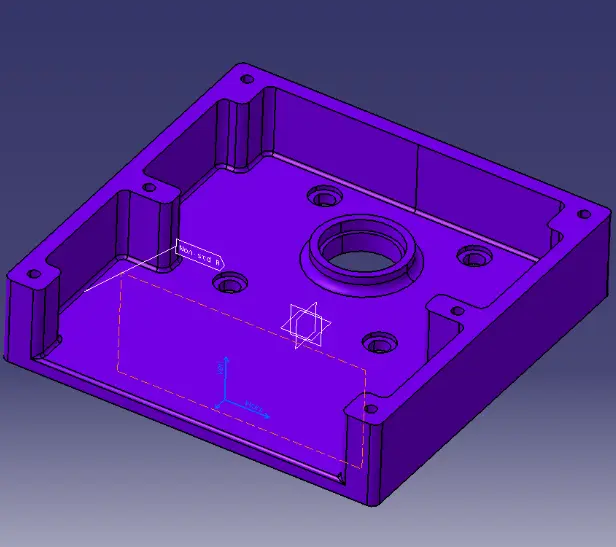
In the FT&A workbench, annotations often need to be repeated with the same structure, symbols, and intent across different areas of a model. Instead of recreating them each time, Note Object Attributes (NOA) combined with Ditto provide a more structured way to reuse annotation elements while maintaining their properties and associativity.
Within this approach, annotations are no longer limited to plain text—they can include graphical components, standardized symbols, and embedded instructions, making them more meaningful in design and manufacturing contexts.
Table of Contents
Before going into the steps, understanding the concept
Note Object Attribute (NOA) is an annotation feature in CATIA that allows the creation of reusable notes with extended capabilities. It supports the inclusion of 2D components, enabling symbols and graphical elements to be embedded directly within annotations.
These elements can also be stored in catalogs and reused across different models, making them suitable for standardized workflows.
Ditto, when used with NOA, enables duplication of these annotations while preserving their structure, properties, and associativity. This ensures consistency without requiring manual recreation.
Creating a Note Object Attribute with Ditto (2D Component):
Related reading: What is GD&T and Why is it Important for Design Engineers?
Step 1:
To follow along, open fixture.CATPart and ensure you are in FT&A workbench.
Step 2:
Click Note Object Attribute.
Step 3:
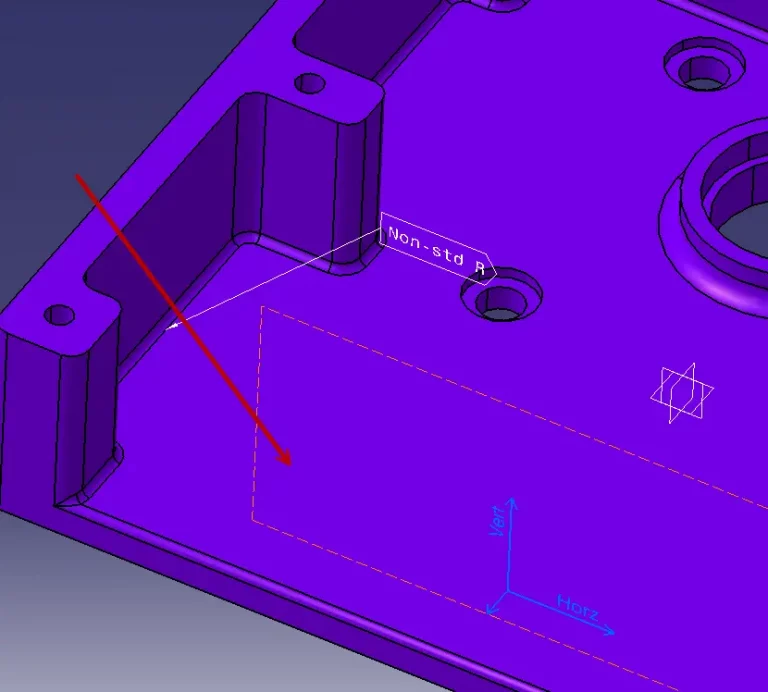
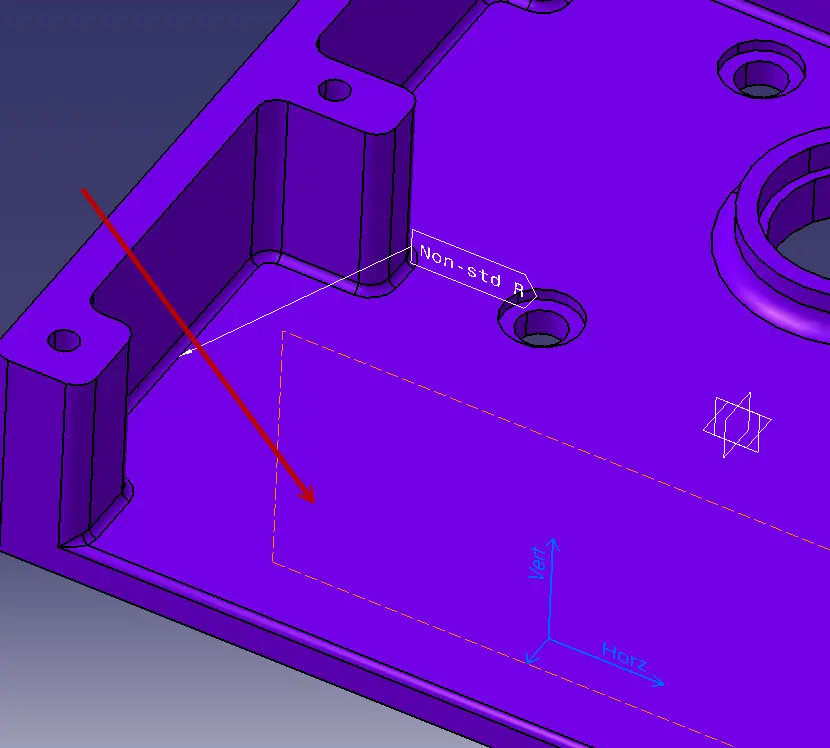
Pick the indicated face.
Step 4:
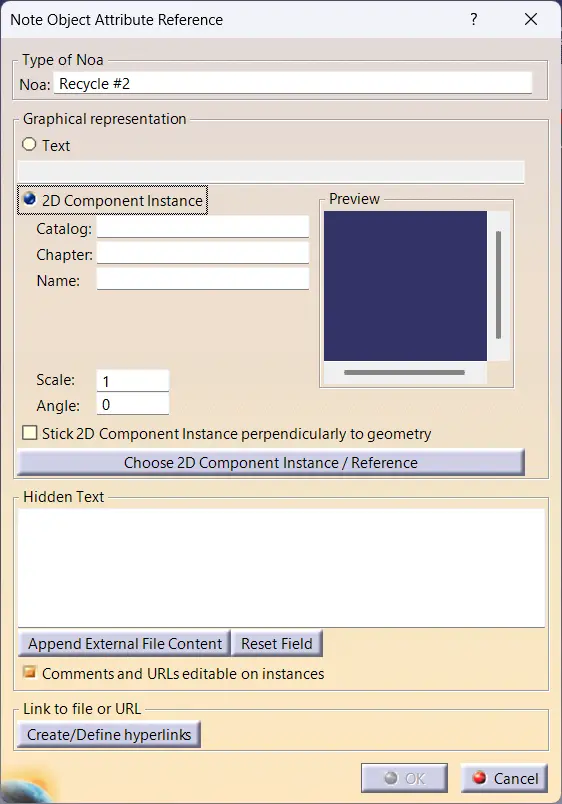
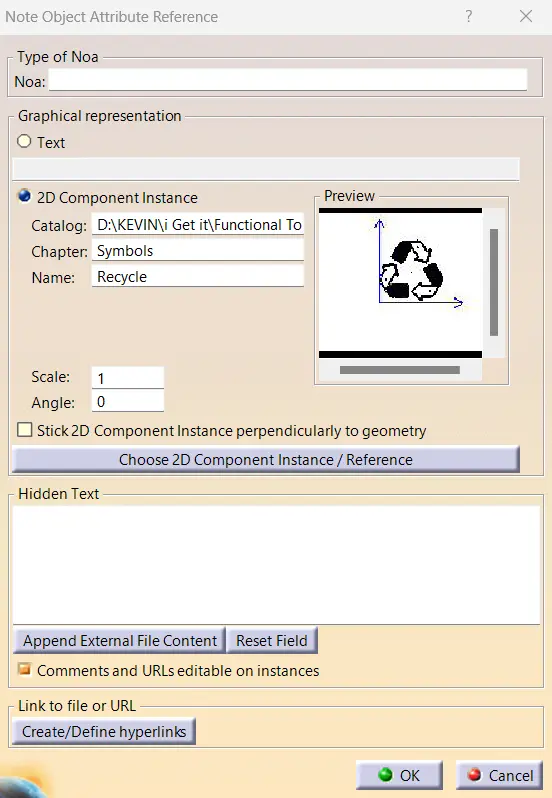
In the Type of Noa area, enter Recycle #2 in the Noa text box.
Step 5:
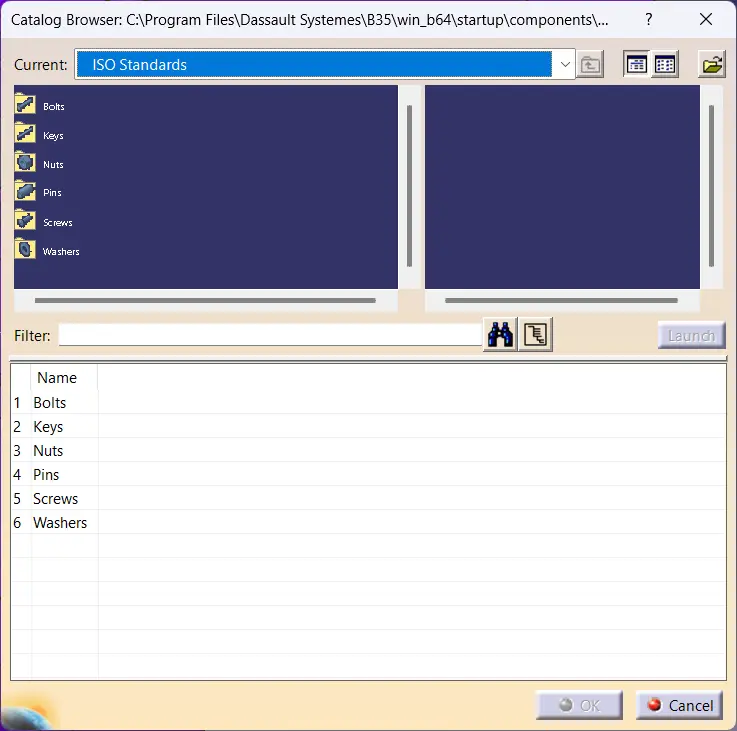
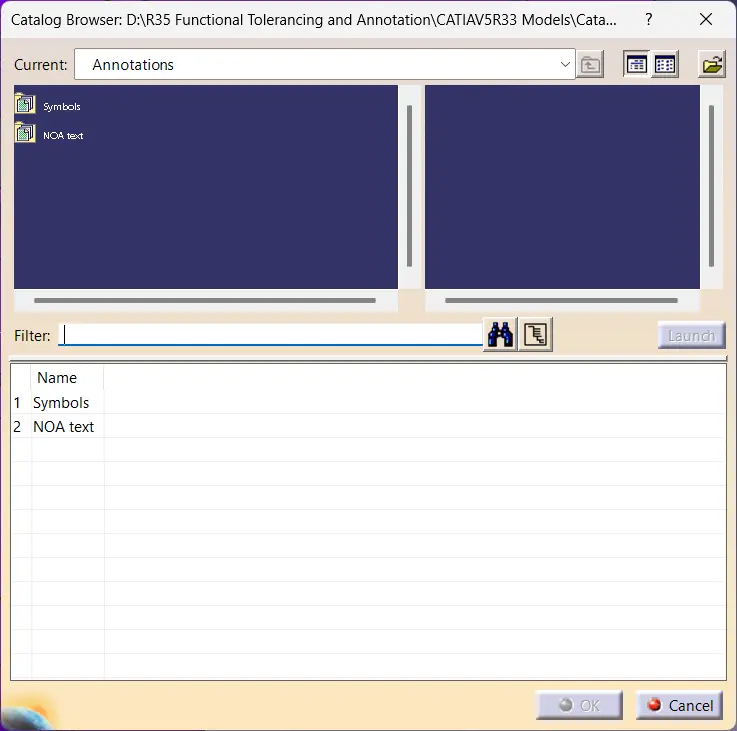
In the Graphical representation area, activate 2D Component Instance and click Choose 2D Component Instance/Reference. The Catalog Browser displays.
Step 6:
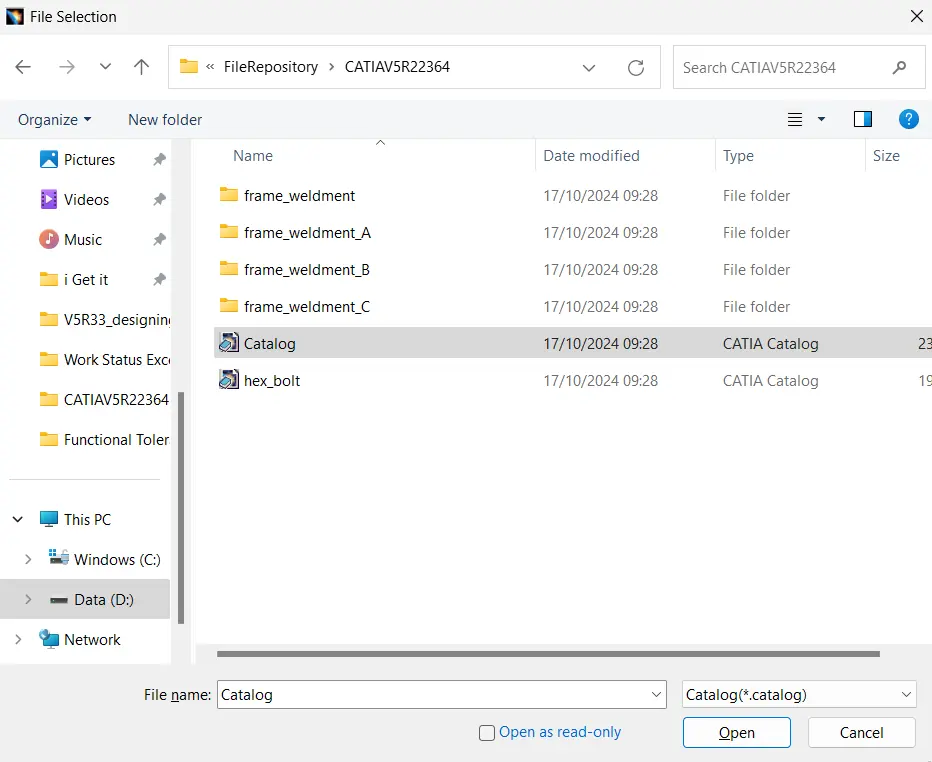
Click Browse in the dialog, browse to the Catalog.catalog, and click Open.
Step 7:
The Catalog Browser displays the catalog.
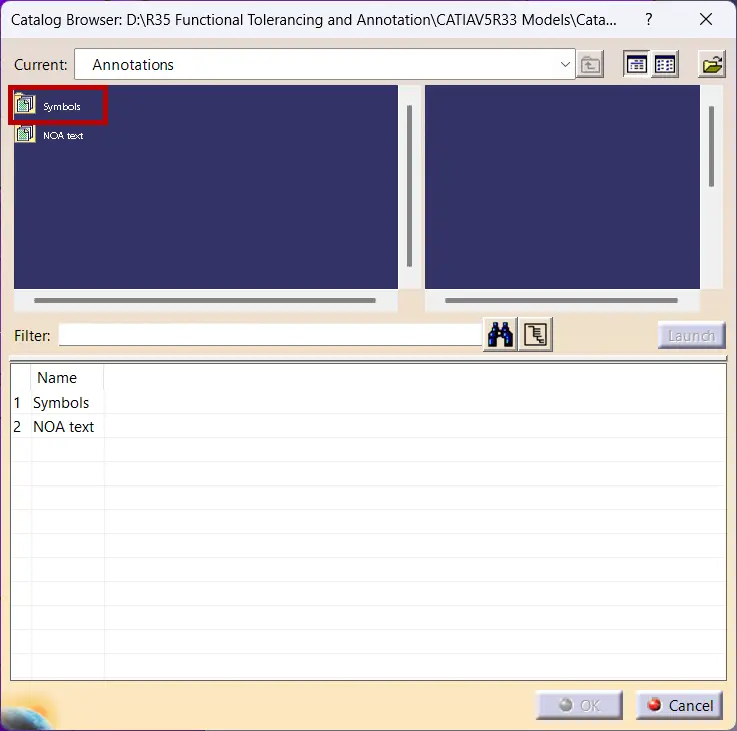
Double-click the Symbols family.
Step 8:
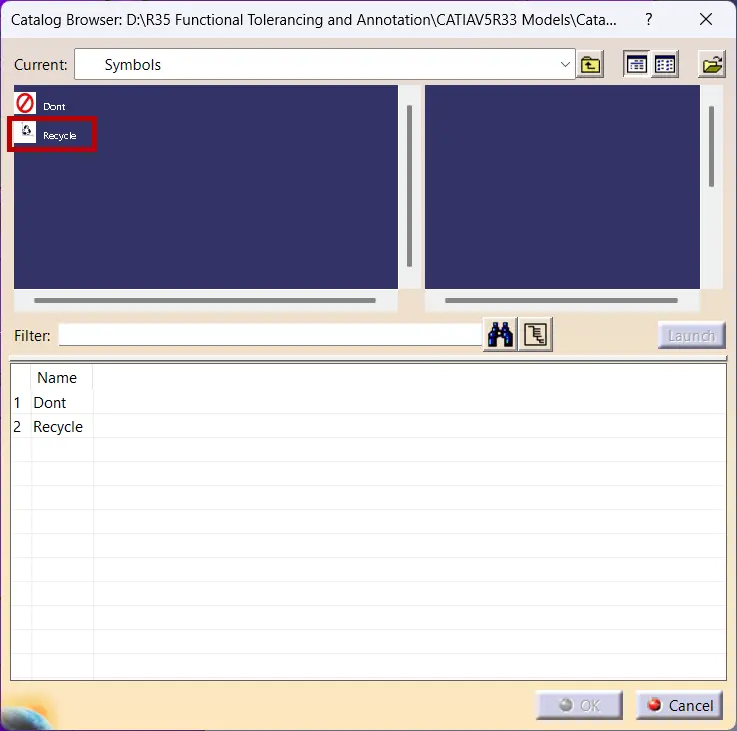
Click the Recycle 2D component.
Click OK and the Preview area of the Note Object Attribute Reference dialog displays the Recycle 2D component.
Step 9:
Enter the following text in the Hidden Text area: Apply Recycle decal #2.
Step 10:
Click OK. Reposition the NOA as necessary.
Why this matters
You may also like: How to Close a Surface to Create a Solid | CATIA V5
1. Reduces repetitive annotation work
Instead of creating the same annotation multiple times, NOA with Ditto allows reuse of predefined elements, saving time during modeling and detailing.
2. Maintains consistency across the design
Using catalog-based annotations ensures that symbols, text formats, and instructions remain uniform throughout the model.
3. Supports standardized engineering workflows
Reusable annotation elements help align with company standards, especially in manufacturing and documentation processes.
Conclusion
Using Note Object Attributes with Ditto in CATIA V5 provides a structured way to manage annotations beyond basic note creation. By combining text, graphical elements, and reusable components, it allows annotations to carry more meaning while staying consistent across the model.
This approach fits naturally into workflows where repeated instructions, symbols, or standards need to be maintained without manual effort. Over time, leveraging catalogs and reusable annotation elements can significantly improve clarity, efficiency, and overall design quality within the FT&A environment.
FAQs
CATIA V5 is used for 3D product design, engineering, and modeling across industries such as automotive, aerospace, and manufacturing.
FT&A (Functional Tolerancing & Annotation) workbench is used to define 3D annotations, tolerances, and manufacturing information directly on the model.
Note Object Attribute (NOA) is an annotation feature that allows reusable notes with text, symbols, and associated properties within the FT&A workbench.
Annotations can be reused using features like NOA and tools such as Ditto, which allow duplication while maintaining properties and associativity.
A complete CATIA V5 learning path typically includes Sketcher, Part Design, Assembly Design, Drafting, Surfacing, and FT&A workbench for annotations.
Yes, FT&A plays a key role in adding manufacturing information directly to 3D models, improving clarity and reducing dependency on 2D drawings.
Structured training platforms such as i GET IT by Tata Technologies provide module-based learning with practical exercises and real-world workflows.
Key areas include Part Design, Assembly Design, Surfacing, Drafting, and FT&A for annotations and tolerancing.
Yes, using features like Note Object Attributes, annotations can include 2D symbols, graphical elements, and hidden instructions for manufacturing use.
Explore Comprehensive CATIA V5 Training by Tata Technologies
Learn CATIA V5 from sketching and modeling to assemblies, surfacing, and FT&A with practical, industry-relevant workflows.
Explore CATIA V5 TrainingContact UsVinay
Related Posts
Geneva Mechanism Explained: Working Principle, Design & Applications
What is Fluid Mechanics? – Introduction, Laws & Equations
What Is AutoCAD Software? Uses, Features & Practical Examples
Independent Front Wheel Suspension – Types, Benefits & Working
What is PLM? – Product Lifecycle Management [Detailed Guide]
Find
Categories
Latest Posts
Top Siemens NX Online Courses by Tata Technologies
April 6, 2026Best GD&T Course Guide 2026: Learning Roadmap & Insights
March 19, 2026Popular Tags